Posts

Upgrade Aruba IAP325 controller firmware from 6.5.4.3 to 8.7.1.3 with cluster mode

Image
  1) Upgrade Aruba AP Firmware from 6.5.4.3 to 8.7.1.3 with cluster mode Download the firmware from Aruba Support Portal https://asp.arubanetworks.com Login with username and password Find the correct the AP models and Serial Number    Check the warranty status in HPE page     Login to the support portal to download the firmware     Software and Documents>Aruba Access Points>Product Series(IAP325)>Major Version 8.7>Minor Version 8.7.1.3. Download Ursa_8.7.1.3 Set up TFTP server from your laptop to AP Controller. Make sure both can able to ping each other. Put the downloaded files into the TFTP servers. Under Maintenance>Firmware(Eg for Hercules IAM325 and IAM305)   tftp://192.168.1.222/ArubaInstant_Hercules_8.7.1.3_79817   tftp://192.168.1.222/ArubaInstant_Ursa_8.7.1.3_79817 Enable reboot all the APs after upgrade Click Upgrade now. 2) To change back from standalone to cluster or cluster to standalon...
 FortiGate Firewall Admin reset password: 1. Login to the console of the firewall.  2. Reboot the firewall and wait for till you get the login screen. 3. While rebooting the firewall, you need to write  the username: "maintainer" and Password: " bcpb plus serial number into the notepad. Then copy both username and password. Example: I have serial number 1234MMMM, so the password will be bcpb1234MMM  4. After reboot, you will see the login screen then paste it all within just a second. #config system admin #edit admin #set password xxxxxxx 5. Note that you will get only 14 seconds or less to do it.

FortiGate Useful Command Line

FortiGate Useful Command Line: To check FortiGate Version: get system status To login to secondary firewall: Login to the Primary firewall CLI: type the following execute ha manage (follow the number 0 or 1 ) username FW01#execute ha manage 0 admin 0 is the ( firewall unit ID )- Secondary Firewall admin is the username. To check the checksum for HA FW01#diagnose sys ha checksum show

Dell EMC Firmware Upgrade N4064 Stack Switch with the USB flash drive

Image
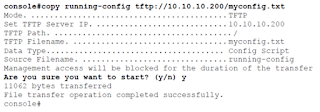
 1. Back up your configuration. The following commands copy the running-config to a USB drive or TFTP server. console#copy running-config tftp://10.10.10.200/myconfig.txt 2. Download the 6.5.4.18 firmware image from the support site below and save the extracted file into the USB Drive.  https://www.dell.com/support/home/en-sg/drivers/driversdetails?driverid=mrrwd&oscode=naa&productcode=networking-n4000-series 3. Download the 6.5.4.18 firmware image from the USB Drive and copy into backup. console#copy usb://N4000v6.5.4.18.stk backup console#show switch console#show version 4. Activate the 6.5.4.18 firmware console#boot system backup 5. Reload the switch console#reload Note that: connect the USB to the Master/Primary Switch  

Cisco 9200 Stack Switch Firmware Upgrade with USB flash drive

Image
 1. Download the new firmware from the following link. https://www.cisco.com/c/en/us/support/switches/catalyst-9200-r-series-switches/series.html#~tab-downloads 2. Copy the file cat9k_lite_iosxe.17.03.05.SPA.bin into the USB flash drive. 3. Connect the USB flash drive to the stack master switch and console it. 4. Before you do anything, backup all the configuration of the switches 5. Login to the stack master switch and check the mode using "Show Ver". In this case, it is running the install mode. 6. Remove unwanted Packages C9200#install remove inactive 7. Copy new image into the flash C9200#copy usbflash1:cat9k_lite_iosxe.17.03.05.SPA.bin flash: To verify: C9200#dir flash:*.bin  8. Set Boot Variable (Change Boot Mode from Bundle to Install Mode) C9200(config)#no boot system (For bundle mode) C9200(config)#boot system flash:packages.conf C9200(config)#end C9200#wr C9200#show boot system 9. Software Install Image to Flash C9200#install add file flash:cat9k_lite_iosxe.17.03.0...
Image
Reset the Cisco Switch Password: Seven Steps for CISCO switch password reset 1. Enter ROMMON mode 2. Rename the config.text file 3. Reboot the switch 4. Rename the config file back to original name 5. Copy current config into running_config 6. Update the new password and secret 7. Save the configuration and restart 1. Enter the ROMMON Mode: Connect the power cable and console cable. Then press and hold the mode button and switch on the power. It will bring to Rommon Mode. When you see the flash mode: then remove the mode button from the switch switch: more flash:config.text then copy and save the backup config file. After that do the following steps Switch: dir flash: 2. Rename the config      Switch: rename flash:config.text flash:config.old    To Verify:      Switch: dir flash: 3. Reboot the switch     Switch: boot 4. Rename the config back to Original      Switch#dir flash:     Switch#rename flash:config.o...
 Remote Install the software with Admin Right: runas /user:.\ localadmin "C:\ test \ cutewriter.exe " or   runas /user:domainname\domainadmin "C:\test\cutewriter.exe"  "C:\test\cutewriter.exe"  is the exe file that is saved in the user laptop.